HOW TO PRINT PHOTOS
If you would like a copy of any of the pictures on my site, you are welcome to save and/or print them. Many were taken by Roger Vigrass – the Feeney and Ladies Cups, for instance – and Roger has graciously given his permission also.
Printing internet pics or sending them out to your local Walgreens, Walmart or wherever you prefer, is very easy. It’s basically just a matter of right-clicking on the pic and saving it to your local hard drive or a USB stick. You can then either take them over to the store or upload the pics to their website.
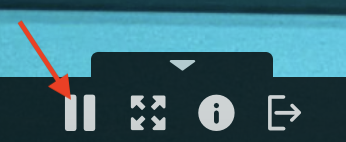
There is an extra step you have to do when the pic is one that is in a gallery. Since the gallery is automatically scrolling thru the various pics, you have to first hit the Pause button on the pics you want to save. It is down the bottom and look like this:
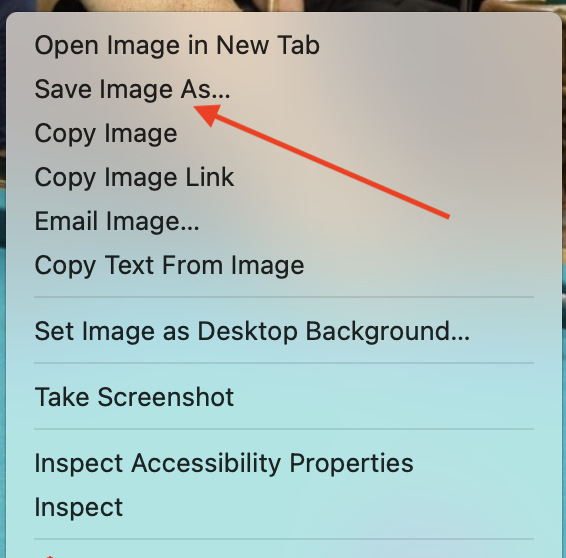
After pausing the scrolling, you can then right-click on the pic and select Save Image As to save it to your PC hard drive or a removable USB stick:
After downloading the pic, you can then either take it over to the store and have whatever size pic you want made or go to their website and upload it there. Here is an example using the Walgreens website. Just click on the Photos->Prints menu item:

Then select the Prints image to continue on to selecting your size print:


Select the size you want then click on the Order Prints button. Then click on the Upload Photos button to upload the pic(s) you downloaded. I see they now also let you upload pics from your phone so if you previously downloaded one of the pics to your phone you can also do it that way.

Previous Newsletters
- 01/25/2026 Weekly Billiards News
- 01/18/2026 Weekly Billiards News
- 01/11/2026 Weekly Billiards News
- 01/04/2026 Weekly Billiards News
- 12/28/2025 Weekly Billiards News